New

✨AI Generated content (NL | FR)

Client portal

EN

Client portal

EN

New

✨AI Generated content (NL | FR)

Client portal

EN

Install the Omnicasa beta

Install the Omnicasa beta

Install the new Omnicasa app on your iPhone through Apple TestFlight.

Install the new Omnicasa app on your iPhone through Apple TestFlight.

The beta installs beside your current Omnicasa app.

Walkthrough of the steps below.

Before you start

Before you start

An iPhone signed in with your Apple ID

Your Omnicasa login details

A stable internet connection

Six steps

Six steps

1

Open the invitation

Open the invitation

Tap “Open in TestFlight” above, then tap View in App Store.
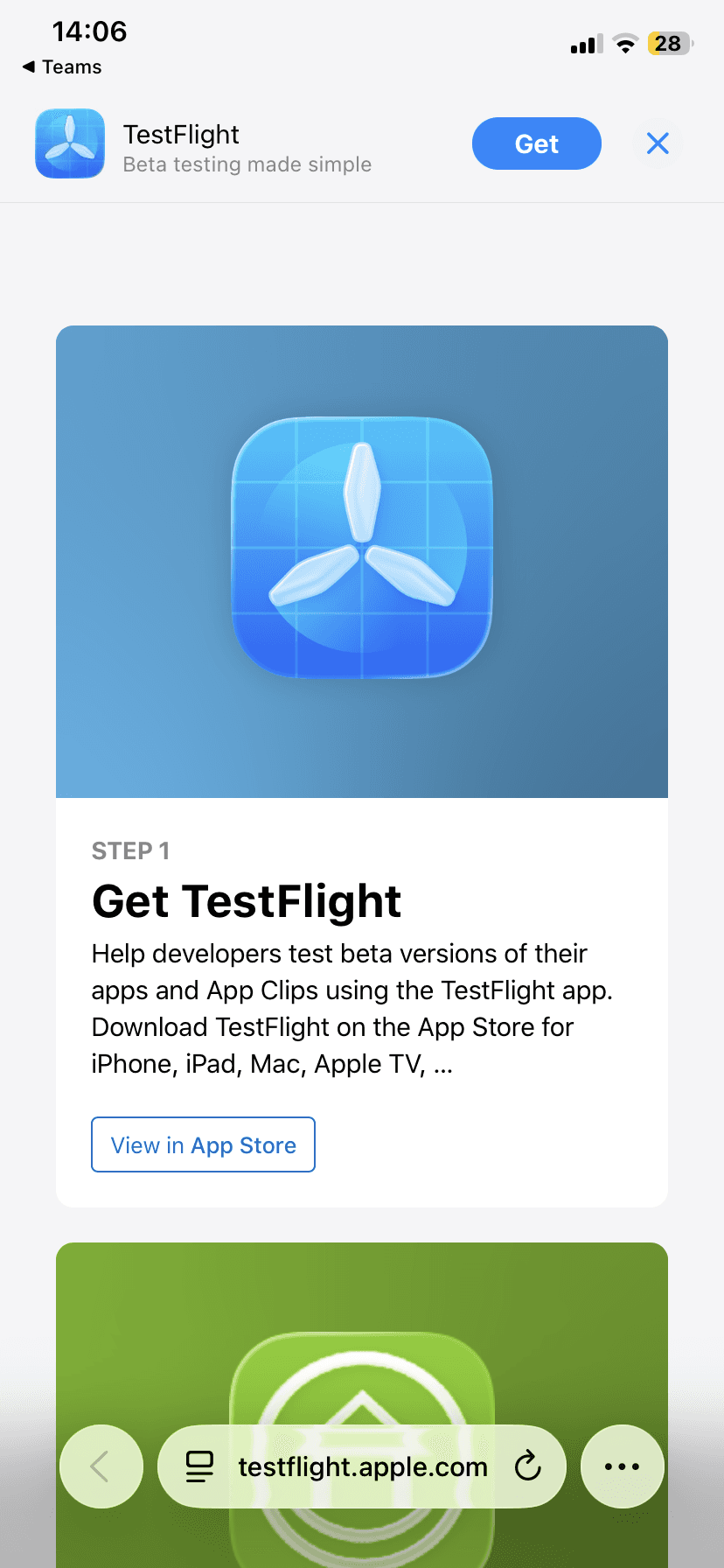
TestFlight invitation page with the Get TestFlight button

2

Install TestFlight

Install TestFlight

In the App Store, tap Get. Open TestFlight after installation.

App Store page for TestFlight with the Get button

3

Continue in TestFlight

Continue in TestFlight

On the welcome screen, tap Continue.

TestFlight welcome screen with the Continue button

4

Agree to the terms

Agree to the terms

Read the TestFlight terms, then tap Agree.

TestFlight terms and conditions screen with the Agree button

5

View the Omnicasa beta

View the Omnicasa beta

Return to the invitation page, then tap View in TestFlight.

Omnicasa beta invitation page with the View in TestFlight button

6

Install and open Omnicasa

Install and open Omnicasa

In TestFlight, tap Accept or Install. When it is ready, tap Open.

Omnicasa beta page in TestFlight with the Open button

Need help?

Need help?

If TestFlight or installation does not work, email [email protected] and tell us which step failed.